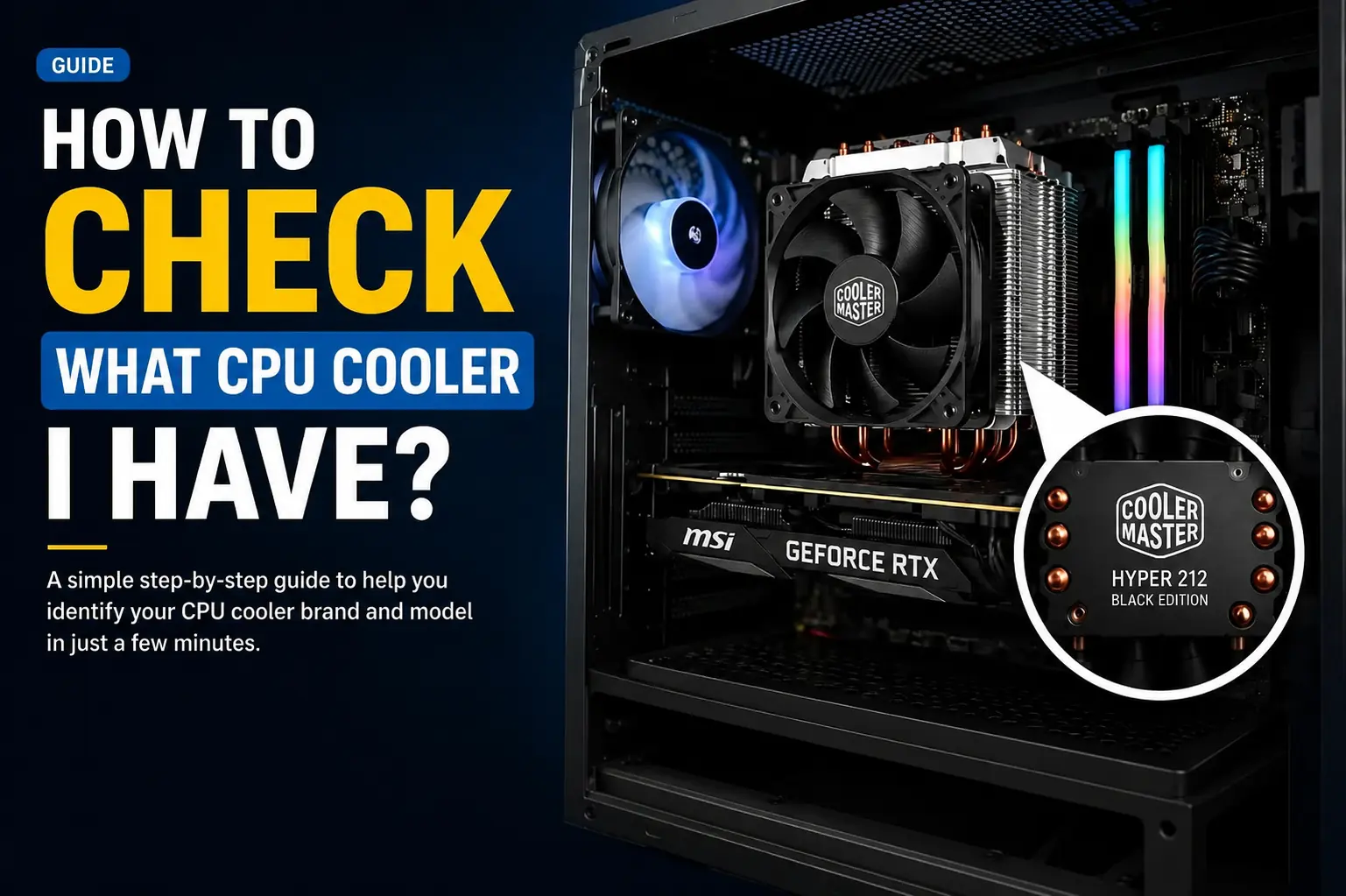
How to Check What CPU Cooler I Have? (Easy 2026 Guide)
The easiest way to check what CPU cooler you have is to first check your invoice, order history, product page, or PC spec sheet. If the cooler model is not listed there, turn off and unplug your PC, remove the side panel, and inspect the cooler above the CPU.
Introduction
If your PC is running hot, making too much fan noise, or you are planning a CPU upgrade, the first step is knowing exactly what CPU cooler you have. The good news is that you can usually identify it in just a few minutes by checking your PC documents or safely looking inside the case.
This guide explains the safest ways to check your CPU cooler type, find the brand and model, and avoid common mistakes.
What Is a CPU Cooler?
A CPU cooler is the cooling part installed above your processor. Its job is to move heat away from the CPU so your PC can run safely and smoothly.
Most desktop PCs use an air cooler, AIO liquid cooler, stock cooler, or custom water cooling setup. The cooler type depends on your PC build, processor, case size, and cooling needs.
Why Knowing Your CPU Cooler Matters
Knowing your CPU cooler matters because it directly affects CPU temperature, system performance, noise levels, and future upgrade options. If your PC is overheating, slowing down, or making too much fan noise, identifying the cooler type helps you find the problem faster.
It also helps when you need to clean the cooler, replace thermal paste, check case clearance, upgrade your processor, or buy a better cooling solution. Without knowing your current cooler, you may choose the wrong replacement part or buy a cooler that does not fit your PC case or CPU socket.
Cooler Types at a Glance:
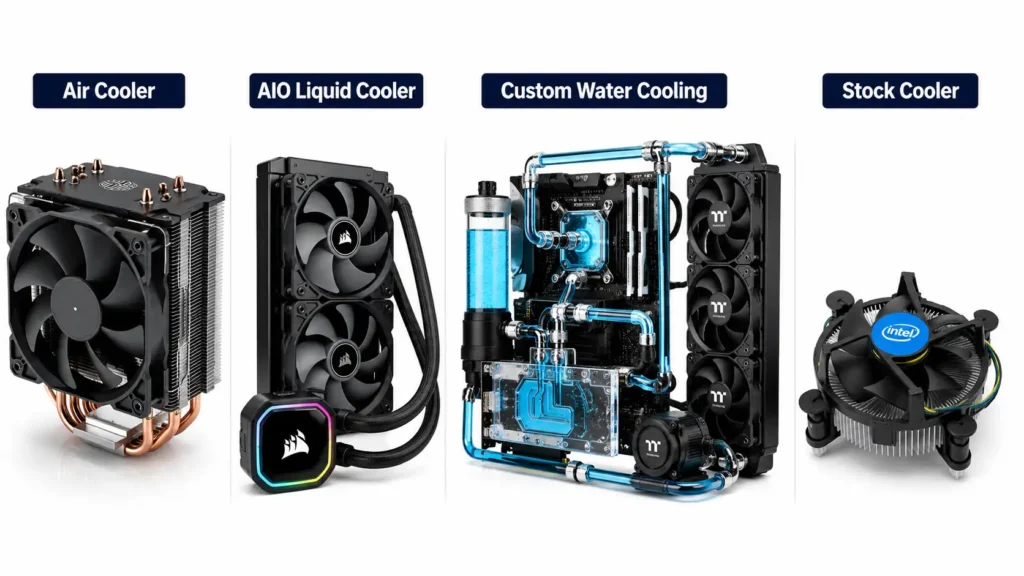
Before you start, use this table to understand what you are looking for inside your PC:
| Cooler Type | What You See Inside the PC |
| Air CPU cooler | A metal heatsink with one or two fans attached above the CPU |
| AIO liquid cooler | A small block on the CPU with two tubes going to a radiator |
| Custom water cooling | Tubes, fittings, pump, reservoir, and a full liquid loop inside the case |
| Stock CPU cooler | A stock CPU cooler is usually a basic air cooler that comes with the CPU or prebuilt PC. |
Check Your Invoice, Order History, or Spec Sheet First:
Before opening your PC case, check your PC invoice, online order history, product page, or spec sheet. If you bought a prebuilt PC, the cooler may be listed under terms like CPU cooler, cooling system, thermal solution, AIO cooler, liquid cooling, or air cooling.
If you built the PC yourself, check your email receipt or the store account where you bought the parts. This can save you time without even opening the case.
Open the Case and Identify the Cooler:
1. Turn Off and Unplug Your PC Safely
Shut down your PC completely and unplug the power cable from the wall. Wait a few minutes before opening the case. Before touching any internal parts, touch a metal part of the case to reduce static electricity risk.
2. Remove the Side Panel
Remove the side panel of your PC case. In most desktop cases, the side panel is held by screws at the back. Once the panel is removed, look near the center of the motherboard — the CPU cooler sits directly above the processor.
3. Look for Logos, Labels, and Branding
Check the cooler for a brand logo, sticker, label, product name, or model number. Air coolers usually have branding on the fan, heatsink, or top cover. AIO liquid coolers often have branding on the pump block, radiator, or fans.
Do not remove the cooler unless you are ready to clean off the old thermal paste and apply fresh paste before reinstalling.
Find the Brand and Model Number
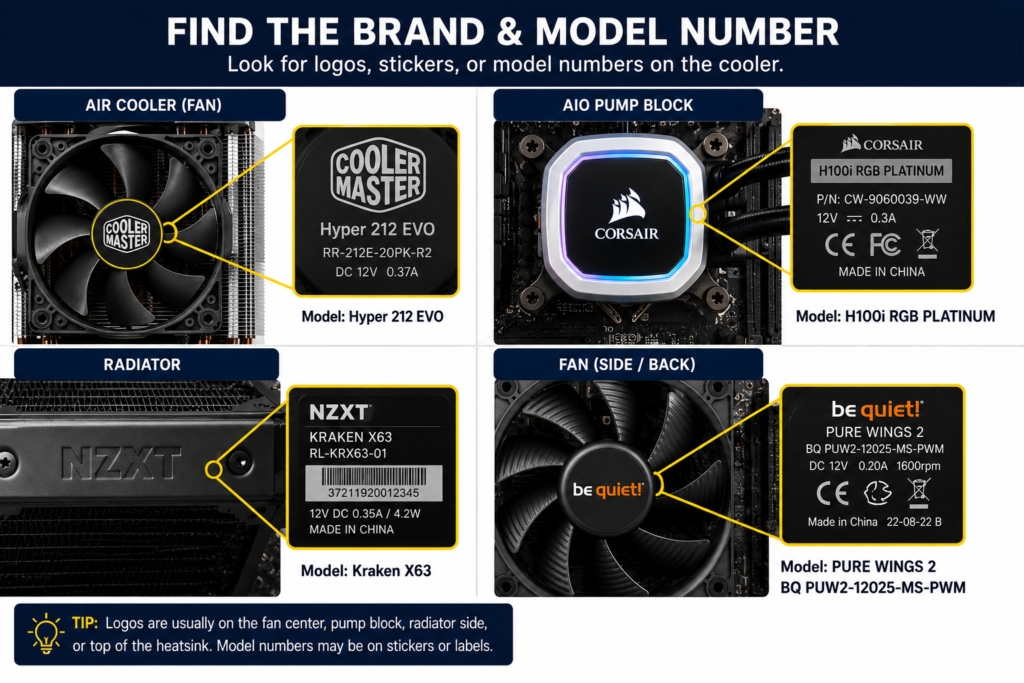
After identifying the cooler type, look closely for a brand logo, sticker, product name, or model number. Common brands and where to find their logos:
- Cooler Master: center of the fan or top cover
- Corsair: pump block, radiator, or fans
- NZXT: pump block or radiator
- Noctua: brown and beige fan colors are instantly recognizable
- DeepCool: fan, heatsink, or pump block
- be quiet!: fan center or heatsink
- ARCTIC: fan or heatsink
- Thermalright: heatsink top plate or fan
If you find a model name or number, search it online and compare with official product images to confirm the exact cooler.
Can Software Show What CPU Cooler You Have?
Software usually cannot show the exact CPU cooler brand or model installed in your PC. Tools like HWMonitor and HWiNFO can show detailed CPU temperature and fan RPM readings, while Core Temp offers a simpler temperature view and your BIOS provides fan speed and thermal data but none of these can identify the actual cooler model. For the exact model, it is better to check your invoice, order history, specs sheet, or look for a logo, sticker, or model number on the cooler itself.
What If You Cannot Find the Model Number?
Some coolers have hidden stickers, faded labels, or no visible model name. Try these steps:
- Check your invoice, order history, or spec sheet again.
- Search your prebuilt PC model on the manufacturer’s website.
- Take a clear photo and use Google Lens or image search.
- Compare the cooler shape with similar models on the brand’s website.
- Contact the PC seller or manufacturer if you still cannot confirm it.
FAQ’s:
1: Can I check what CPU cooler I have without opening my PC?
Yes. Check your invoice, order history, product page, or spec sheet first. The cooler model may already be listed there.
2: Can software tell me what CPU cooler I have?
Usually, no. Software can show CPU temperature, fan speed, or pump speed, but it cannot identify the exact cooler brand or model.
3: How do I know if I have an air cooler or liquid cooler?
If you see a fan with metal fins above the CPU, it is an air cooler. If you see tubes connected to a radiator, it is an AIO liquid cooler.
4: How can I find my CPU cooler model number?
Look for a logo, sticker, product name, or model number on the fan, heatsink, pump block, radiator, or top cover. You can then search the name or number online and compare it with official product images.
5: Do I need to remove the CPU cooler to identify it?
No. In most cases, you can identify the cooler by checking the visible logo, sticker, fan, heatsink, tubes, or radiator without removing it.
6: Can I check a laptop CPU cooler the same way?
Not exactly. Laptop coolers are built inside the laptop body. It is better to check the laptop’s official specs, service manual, or repair guide instead of opening the laptop yourself.
Conclusion
Checking what CPU cooler you have does not take long. Start with your invoice, order history, product page, or spec sheet. If the information is not there, turn off and unplug your PC, open the side panel, and look above the CPU.
Use the cooler types table to identify what kind of cooler it is, then look for a logo, product name, or model number to confirm the exact model. Use software only to check temperatures and fan speed, not to identify the cooler. If you still cannot find the model, a clear photo and Google Lens will usually help you confirm it.