Can Low Ram Cause CPU Overheating In A Laptop? (2026 Guide)
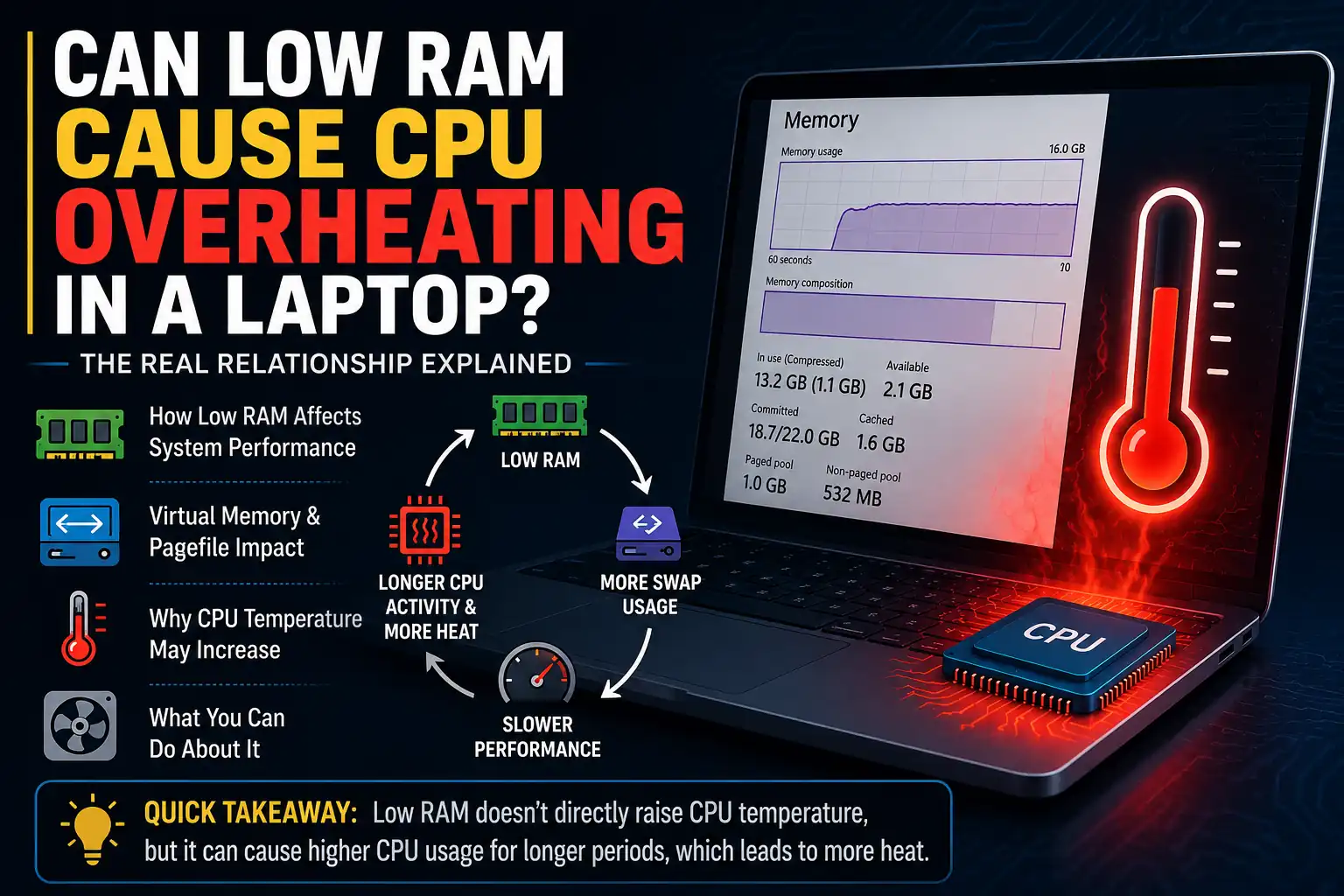
Low RAM does not directly cause CPU overheating. However, it may increase paging and keep some tasks running longer, which can contribute to slightly higher temperatures. Serious overheating is usually caused by poor airflow, dust, fan problems, or heavy CPU workloads.
Introduction:
A laptop that feels slow, runs hot, and keeps its fan spinning loudly may make you wonder whether insufficient RAM is causing the problem. However, performance issues and overheating do not always have the same cause.
Low RAM mainly affects responsiveness and multitasking. When physical memory becomes limited, the operating system may move some data to virtual memory on the storage drive. This can slow down applications and increase overall system activity, but it does not automatically mean the CPU will overheat.
This guide explains how low RAM can indirectly affect CPU temperature, how to distinguish memory pressure from a cooling problem, and whether upgrading your laptop’s RAM can help.
Can Low RAM Cause CPU Overheating in a Laptop?
Low RAM does not directly overheat a laptop CPU. RAM and CPU cooling are separate parts of the system, and having less memory does not automatically make the processor dangerously hot.
However, insufficient RAM can indirectly contribute to higher temperatures in certain situations:
- The system may rely more heavily on virtual memory.
- Applications may take longer to complete tasks.
- Multitasking can create additional system activity.
- The CPU may remain active for longer during demanding workloads.
This indirect effect is normally limited. If a laptop becomes extremely hot, throttles heavily, or shuts down unexpectedly, the cause is more likely to be restricted airflow, dust buildup, a damaged fan, dried thermal paste, malware, or demanding software.
How Low RAM Indirectly Increases CPU Temperature?
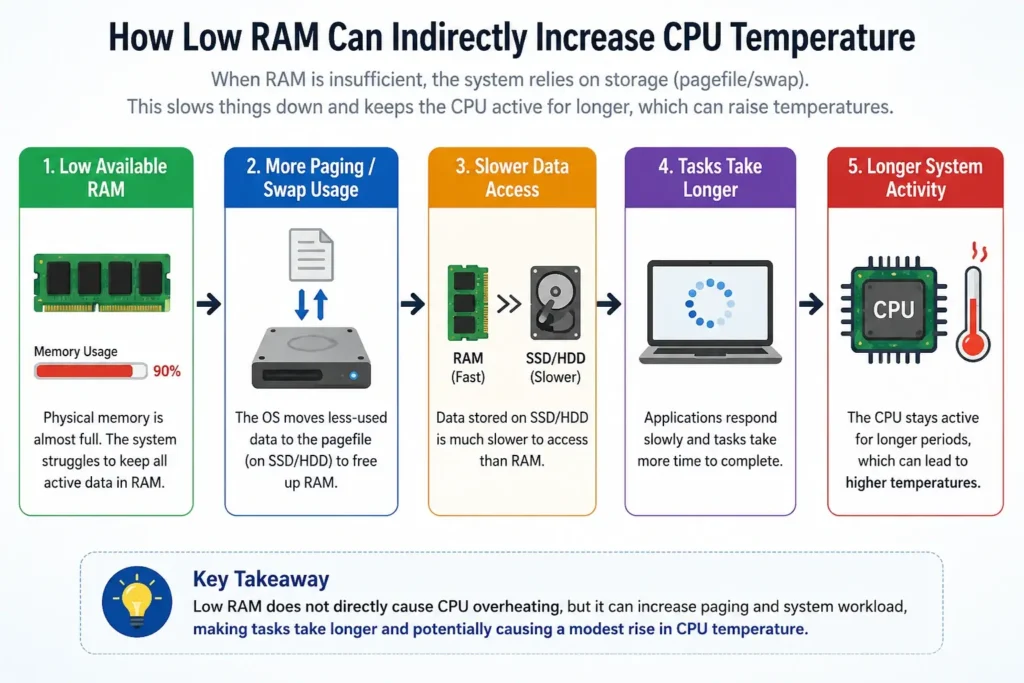
When a laptop has enough available RAM, frequently used data can remain in fast physical memory. This allows applications to access that data quickly and complete tasks efficiently.
When RAM becomes full, the operating system may move less-active data to virtual memory on the SSD or hard drive. If an application needs that data again, it must be retrieved from storage. Because storage is slower than RAM, the application may take longer to respond.
Heavy paging does not always increase CPU usage. In some cases, the processor may spend time waiting for data from storage. However, memory pressure can make applications run less efficiently and keep the overall system active for longer. During multitasking or demanding workloads, this extended activity may contribute to a modest increase in CPU temperature.
The relationship can be summarized as:
Low available RAM → More paging and storage activity → Slower task completion → Longer system activity → Possible temperature increase
Low RAM should therefore be viewed as a possible contributing factor rather than a direct cause of overheating.
Low RAM, Virtual Memory, and Pagefile Usage Explained:
1. What Does RAM Do?
RAM, or Random Access Memory, temporarily stores the data required by active applications and the operating system. Having enough RAM allows the laptop to switch between programs and handle multiple tasks without constantly retrieving data from slower storage.
2. What Is Virtual Memory?
Virtual memory allows the operating system to use part of the storage drive when available physical RAM is insufficient. It helps prevent applications from immediately crashing when memory demand exceeds the amount of installed RAM.
Virtual memory is useful for system stability, but it is not as fast as physical RAM.
3. What Is a Pagefile or Swap File?
Windows stores paged data in a pagefile, while macOS and other operating systems commonly use the term swap. This storage space temporarily holds data that cannot remain in physical memory.
Frequent pagefile or swap activity may indicate that the system is under memory pressure, particularly when it is accompanied by lag, freezing, or slow application switching.
4. Does an SSD Handle Paging Better Than an HDD?
An SSD can retrieve paged data faster than a traditional hard drive, so a low-memory laptop with an SSD may feel more responsive than one with an HDD.
However, even a fast SSD is not a replacement for physical RAM. Heavy paging can still reduce performance and increase storage activity. On an HDD-based laptop, the effect is usually more noticeable because mechanical drives have much higher access latency.
Low RAM vs Poor Cooling: How to Find the Real Cause?
| Sign | Low RAM Issue | Poor Cooling Issue |
| Main effect | Slow performance | Excessive heat |
| Application behavior | Lag, freezing, crashes, or tab reloads | Performance drops after the laptop heats up |
| Fan behavior | May become louder during heavy multitasking | May run loudly during light use |
| Memory usage | Frequently high | May remain normal |
| CPU temperature | Often normal or moderately elevated | Frequently high under light or moderate load |
| Common trigger | Many apps, tabs, or background tasks | Dust, blocked vents, fan failure, or thermal-paste problems |
| Likely solution | Reduce memory use or upgrade RAM | Restore airflow or repair the cooling system |
If the laptop mainly becomes slow when several applications are open, insufficient RAM may be the problem. If it becomes unusually hot during light use, continues running its fan loudly, or shuts down unexpectedly, the cooling system is a more likely cause.
Low RAM primarily affects performance, while poor cooling directly affects the laptop’s ability to remove heat.
Signs Your Laptop Has Low RAM, Not Just Overheating:
A hot laptop does not automatically need more RAM. Look for performance and memory-pressure symptoms alongside the temperature increase.
- Frequent lag during multitasking: The laptop slows down when several programs or browser tabs are open.
- Apps freeze or stop responding: Programs take longer to open, hang, or close unexpectedly.
- Browser tabs keep reloading: The browser removes inactive tabs from memory and reloads them when needed.
- Memory usage remains consistently high: RAM usage stays near its limit during your normal workload.
- Switching between applications feels slow: The system pauses while retrieving data from virtual memory.
- Storage activity increases during slowdowns: Heavy pagefile or swap use keeps the SSD or hard drive busy.
- Performance improves after closing programs: The laptop becomes responsive again when memory demand falls.
High memory usage alone does not always mean an upgrade is necessary. Consistently high usage combined with lag, freezing, tab reloads, or heavy swap activity is a stronger sign of insufficient RAM.
How to Check Memory and CPU Usage?
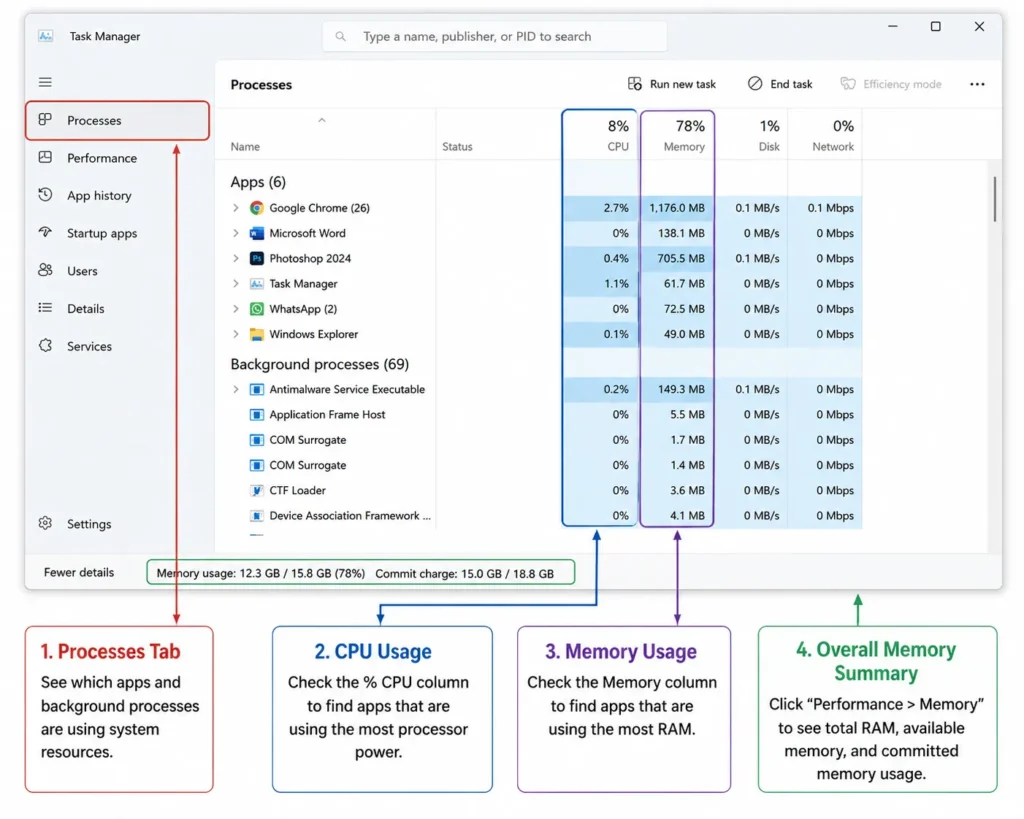
1. On Windows
Press Ctrl + Shift + Esc to open the Task Manager.
Open the Processes tab and sort applications by the CPU and Memory columns. This helps identify programs consuming unusually high resources.
Next, open Performance > Memory and review:
- Installed and available RAM
- Current memory usage
- Committed memory
- Memory speed and available slots
If memory stays close to its limit during your normal workload and the laptop frequently slows down, additional RAM may help.
2. On macOS
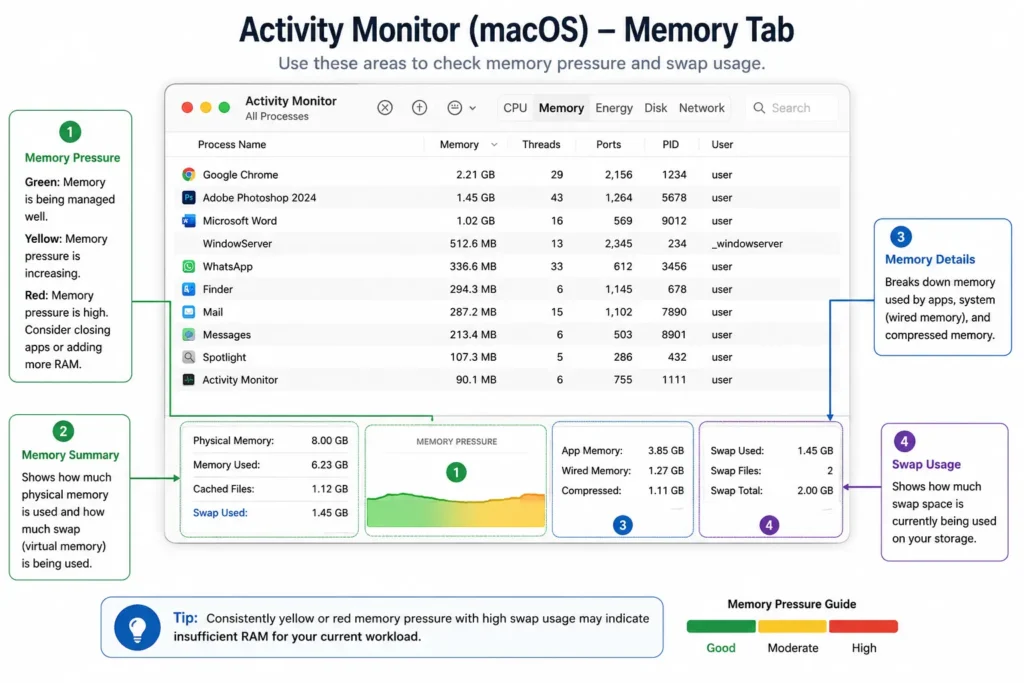
Open Activity Monitor and select the Memory tab.
Pay particular attention to:
- Memory Pressure
- Swap Used
- App Memory
- Compressed Memory
Green memory pressure generally indicates that macOS is managing memory efficiently. Yellow or red pressure, especially with high swap use and noticeable slowdowns, suggests that the workload may exceed the available RAM.
Open the CPU tab and sort by % CPU to identify applications creating a heavy processor load.
Does Upgrading RAM Help Reduce Laptop Overheating?
A RAM upgrade may reduce indirect heat when insufficient memory is causing frequent paging, slow task completion, and prolonged system activity. More physical memory allows additional application data to remain in RAM and may improve multitasking performance.
1. When a RAM Upgrade May Help
Consider upgrading the RAM when:
- Memory usage regularly approaches its limit.
- Memory pressure remains high during normal use.
- Applications freeze or respond slowly.
- Browser tabs reload frequently.
- Swap or pagefile use is consistently heavy.
- Closing applications immediately improves performance.
2. When a RAM Upgrade Will Not Help
Adding RAM will not repair:
- Dust-clogged air vents
- A weak or damaged cooling fan
- Dried or poorly applied thermal paste
- A blocked heat sink
- Malware causing high CPU usage
- Poor airflow around the laptop
- A processor running a demanding workload
A RAM upgrade is a performance solution, not a guaranteed cooling solution. It should be considered only after confirming that insufficient memory is contributing to the problem.
Other Common Causes of Laptop CPU Overheating:
Low RAM is rarely the main reason a laptop overheats. Cooling problems, sustained CPU activity, and poor operating conditions are more common causes.
Dust and blocked vents: Dust can collect around the fan, heat sink, and air vents. Restricted airflow prevents hot air from leaving the laptop and causes internal temperatures to rise.
Cooling-fan problems: A damaged, slow, or obstructed fan cannot move enough air through the laptop. Grinding, rattling, or unusually weak airflow may indicate a fan problem.
Dried thermal paste: Thermal paste helps transfer heat from the processor to the heat sink. As it ages or dries out, heat transfer may become less effective.
Heavy applications: Gaming, video editing, rendering, software updates, and other demanding tasks can keep the CPU under sustained load and naturally produce more heat.
Background processes or malware: Unwanted software can consume CPU resources even when the laptop appears idle.
Poor operating conditions: Using the laptop on a bed, blanket, carpet, or sofa can block its air vents. High room temperatures and direct sunlight also make cooling less effective.
What CPU Temperature Is Too High?
There is no single temperature limit that applies to every laptop processor. Normal and maximum temperatures depend on the CPU model, laptop design, fan profile, and workload.
A laptop may briefly reach high temperatures during gaming, rendering, or other demanding tasks. However, the following signs suggest a cooling problem:
- The CPU repeatedly reaches its thermal limit.
- Performance drops because of thermal throttling.
- The laptop shuts down or restarts unexpectedly.
- Temperatures remain unusually high during light use.
- The fan runs at maximum speed for long periods without lowering the temperature.
Many modern processors begin using thermal-protection mechanisms near their model-specific maximum junction temperature. Check the official specification page for your exact CPU instead of relying on a universal temperature number.
How to Fix Laptop Overheating and High CPU Usage?
Follow these steps in order, starting with software checks before replacing hardware.
1. Check CPU and Memory Usage
Use Task Manager on Windows or Activity Monitor on macOS to identify applications consuming excessive CPU or memory.
Close a suspicious application and monitor the laptop again. If CPU usage and temperature fall, that program may be responsible.
2. Close Unnecessary Programs and Browser Tabs
Too many open applications can increase both memory pressure and processor activity. Close programs that you are not actively using, particularly games, editing software, virtual machines, and video-conferencing tools.
3. Disable Unnecessary Startup Applications
Some programs launch automatically and continue running in the background. Disable nonessential startup apps to reduce resource use after the laptop boots.
4. Scan for Malware
Malware and unwanted applications can create persistent CPU usage. Run a full system scan using a trusted security tool and remove suspicious programs.
5. Improve Airflow
Place the laptop on a clean, hard, flat surface. Avoid beds, blankets, sofas, and carpets because soft materials can block ventilation openings.
A laptop stand may improve airflow if the intake vents are located underneath the device.
6. Clean the Air Vents
Turn the laptop off and clean dust from the external vents carefully. Follow the manufacturer’s maintenance instructions.
Internal cleaning may be necessary if dust has accumulated around the fan or heat sink. Seek professional help if opening the laptop could damage it or void its warranty.
7. Update the Operating System and Drivers
Install operating-system, chipset, graphics, firmware, and BIOS updates from official sources. Software bugs or outdated drivers can occasionally cause abnormal resource use or poor fan control.
8. Upgrade RAM Only When Memory Pressure Is Confirmed
Upgrade the RAM when your normal workload consistently exceeds the installed capacity and creates lag, heavy swapping, or application freezes.
Before purchasing memory, confirm:
- The laptop supports a RAM upgrade.
- The memory type and speed are compatible.
- An empty slot is available, or the existing module can be replaced.
- The laptop’s maximum supported capacity is not exceeded.
Some modern laptops have soldered memory that cannot be upgraded.
9. Have the Cooling System Inspected
If the laptop remains hot during light use after software and airflow checks, the fan, heat sink, or thermal paste may require professional inspection.
Sudden shutdowns, severe throttling, fan errors, or no airflow from the vents should be treated as cooling-system problems rather than RAM issues.
Frequently Asked Questions:
1. Can low RAM directly overheat a laptop CPU?
No. Low RAM does not directly generate CPU heat. It may contribute indirectly by increasing memory pressure, paging, and the time required to complete certain workloads.
2. Does adding more RAM make a laptop run cooler?
It may help slightly when insufficient memory is causing heavy paging and prolonged system activity. It will not fix overheating caused by restricted airflow, dust, fan failure, or deteriorated thermal paste.
3. How can I tell whether my laptop needs more RAM?
Common signs include persistent memory pressure, freezing, tab reloads, slow app switching, heavy swap activity, and immediate performance improvements after closing applications.
4. Why does my laptop overheat when memory usage is normal?
The cause is more likely to be high CPU usage, dust buildup, blocked vents, a damaged fan, poor airflow, thermal-paste deterioration, or high ambient temperature.
5. Can virtual memory damage the CPU?
No. Virtual memory is a normal operating-system feature and does not damage the processor. Heavy paging can reduce performance, but it is not inherently harmful to the CPU.
6. Should I upgrade the RAM or clean the cooling system first?
Check CPU and memory usage before spending money. Upgrade RAM when memory pressure is consistently high. Inspect the cooling system when the laptop remains hot during light use or shows signs of throttling and shutdowns.
Conclusion:
Low RAM does not directly cause CPU overheating, but memory pressure and heavy paging may keep some workloads running longer and contribute to slightly higher temperatures.
Serious overheating is more commonly linked to dust, restricted airflow, fan problems, thermal paste, or sustained CPU activity. Check memory usage, processor load, and cooling performance before purchasing additional RAM.
Still unsure what is causing the heat? Check CPU and memory usage first, then inspect the vents and cooling fan before deciding whether your laptop needs a RAM upgrade or cooling-system repair.