Do CPUs Need Drivers? Complete Beginner’s Guide (2026)
No, CPUs do not need separate drivers like graphics cards or printers. Your motherboard firmware and operating system already recognize and manage the processor. You may still need chipset, graphics, BIOS, or Windows updates for stability, compatibility, and performance improvements.
In this guide, you’ll learn whether a CPU really needs a driver, why people confuse CPU drivers with chipset updates, and what you should actually install after building or upgrading a PC.
Why People Think CPUs Need Drivers:
People think CPUs need drivers because most other computer parts need them. A graphics card, printer, sound card, Wi-Fi adapter, or Bluetooth device often needs a driver before it works properly. So beginners naturally assume the CPU must need one too. The confusion also comes from terms like chipset drivers, BIOS updates, and integrated graphics drivers. These updates are related to the processor platform, but they are not the same as a separate CPU driver.
Why a CPU Works Without a Separate Driver:
A CPU does not need a separate driver because modern operating systems already include built-in support for processors.
When you turn on your PC, your motherboard’s BIOS or UEFI initializes the CPU first. After that, Windows, Linux, or another operating system takes over and manages how the CPU handles tasks.
The operating system already knows how to schedule work across CPU cores and threads. It also manages power states, sleep states, and basic processor features.
So you do not need to download something called a “CPU driver” just to make your Intel Core, AMD Ryzen, or similar processor work.
If your CPU is compatible with your motherboard and your BIOS supports it, the system should boot and run without a separate CPU driver.
CPU Driver vs. Chipset Driver: What’s the Difference?
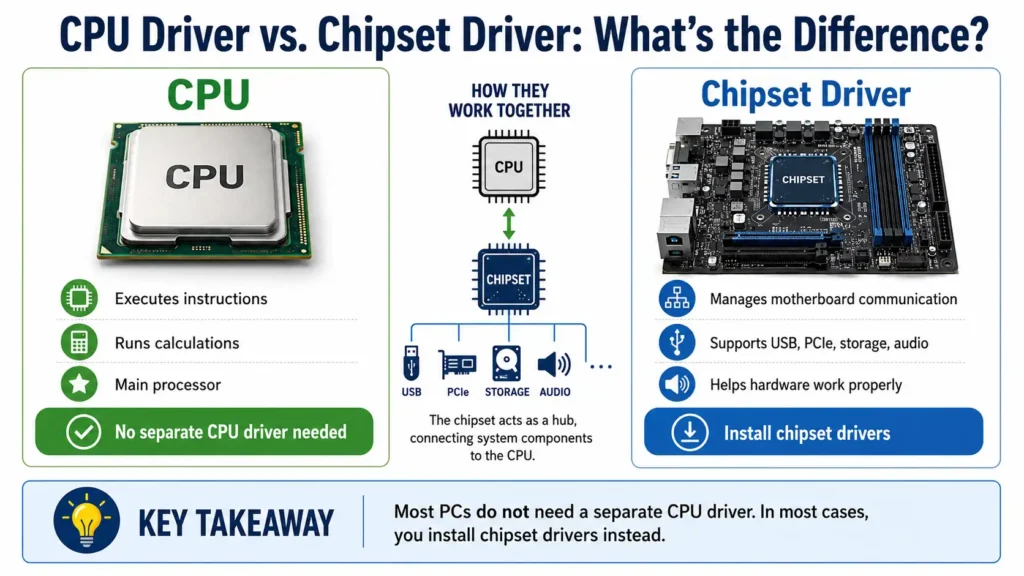
This is the most important part to understand.
A CPU driver and a chipset driver are not the same thing. In fact, when people say “CPU driver,” they usually mean “chipset driver.”
| Item | What It Does | Do You Need to Install It? |
| CPU driver | Not usually a separate thing for normal users | No |
| Chipset driver | Helps Windows communicate properly with motherboard chipset features | Yes, recommended |
| Graphics driver | Needed if your CPU has integrated graphics | Yes, if you use integrated graphics |
| BIOS update | Adds motherboard fixes, compatibility, and CPU support | Sometimes |
| Microcode update | Low-level CPU behavior/security update | Usually handled by BIOS or Windows |
The chipset is part of your motherboard platform. It helps control communication between the CPU, storage, USB ports, PCIe lanes, and other system parts.
So when AMD offers Ryzen chipset drivers, those are not “CPU drivers” in the normal sense. They are motherboard platform drivers.
Do Intel and AMD CPUs Need Drivers?
No, both Intel and AMD CPUs normally work without separate CPU drivers. Windows, Linux, and other modern operating systems can detect and manage supported processors automatically.
However, you may still need related software depending on your system. For example, Intel systems may need chipset drivers, Intel Management Engine software, or Intel graphics drivers. AMD Ryzen systems may need AMD chipset drivers and Radeon graphics drivers if the CPU has integrated graphics.
| CPU Brand | Separate CPU Driver Needed? | Related Software You May Need |
| Intel | No | Chipset driver, Intel graphics driver, BIOS update |
| AMD Ryzen | No | AMD chipset driver, Radeon graphics driver, BIOS update |
| AMD Ryzen with integrated graphics | No CPU driver, but graphics driver needed | AMD chipset + Radeon graphics driver |
| Intel CPU with integrated graphics | No CPU driver, but graphics driver needed | Intel graphics driver |
So the processor itself does not need a separate driver. The related platform, graphics, and motherboard components may still need updates.
Do CPUs With Integrated Graphics Need Drivers?
This is where many people get confused.
A CPU with integrated graphics still does not need a “CPU driver.” But the graphics part inside the CPU does need a graphics driver.
For example, if your Intel CPU has Intel UHD, Iris Xe, or Intel Arc integrated graphics, you need an Intel graphics driver for the best display performance.
If your AMD Ryzen processor has Radeon integrated graphics, you need an AMD Radeon graphics driver.
Without the correct graphics driver, your display may still work, but you may face problems like low resolution, poor gaming performance, missing brightness controls, screen flickering, or no hardware acceleration.
So the rule is simple:
The CPU part does not need a separate driver. The integrated graphics part does.
When Do You Need Chipset, BIOS, or CPU Updates?
You do not need a CPU driver, but sometimes you do need CPU-related updates.
These updates can fix compatibility problems, improve stability, or add support for newer processors.
You may need updates in these cases:
- You built a new PC
- You reinstalled Windows
- You upgraded your motherboard
- You installed a new CPU
- Your system has random crashes or sleep issues
- Your USB, storage, or PCIe devices act strangely
- Your motherboard does not support your new CPU yet
- A manufacturer recommends a security or stability update
The most common updates are chipset drivers and BIOS updates. Microcode updates usually come through BIOS updates or Windows updates.
What Should You Install After Building a PC?
After building a new PC, do not waste time searching for a “CPU driver.” Install the important system drivers in the right order.
Here’s a simple order:
- Install Windows or your operating system
- Run Windows Update
- Install the motherboard chipset driver
- Install graphics drivers
- Install Wi-Fi, LAN, audio, or Bluetooth drivers if needed
- Check Device Manager for missing drivers
- Update BIOS only if needed
This process covers most beginner PC builds.
If everything works fine after Windows Update, you may not need every optional tool from your motherboard brand. Do not install random utilities just because they are listed on the support page.
Where Should You Download CPU-Related Software?
Only download CPU-related software from trusted official sources.
Use these places:
- Your motherboard manufacturer’s support page
- Intel’s official driver and support page
- AMD’s official driver and support page
- Your laptop manufacturer’s support page
- Windows Update
Avoid random “driver updater” websites. Many of them show scary warnings just to make you install unnecessary software.
For laptops, the safest option is usually the laptop brand’s own support page. Laptop makers often customize drivers for power, cooling, and display behavior.
Do You Need Drivers After Installing a New CPU?
Usually, no.
If you replace your CPU with another compatible CPU on the same motherboard, Windows should recognize it automatically.
But there is one important thing to check before installing a new CPU: BIOS support.
Some motherboards need a BIOS update before they can support newer processors. This is common when you use an older motherboard with a newer CPU from the same socket generation.
For example, a motherboard may physically support a newer CPU, but it may not boot until you update the BIOS.
So before upgrading your CPU, check your motherboard’s CPU support list.
What Are CPU Microcode Updates?
Microcode is low-level instruction code inside the CPU. You can think of it as internal behavior guidance for the processor.
Normal users do not manually install microcode like a normal driver. It usually comes through BIOS updates or operating system updates.
Microcode updates can fix bugs, improve reliability, or patch security issues.
You do not need to worry about microcode every day. Just keep Windows updated and check BIOS updates when your motherboard maker recommends one.
Can Chipset, BIOS, or Microcode Updates Improve Performance?
Sometimes, yes. But do not expect magic.
Chipset drivers can improve power management, device communication, and platform stability. BIOS updates can improve memory compatibility, boot behavior, or CPU support. Microcode updates can improve reliability or security.
In some cases, these updates may improve performance. In other cases, they simply make the system more stable.
If your PC works perfectly, do not update BIOS just for fun. A failed BIOS update can cause serious problems. Only update it when you need CPU support, stability fixes, security updates, or a feature your motherboard maker clearly recommends.
How Can You Check Whether Your CPU Is Recognized Correctly?
You can quickly check whether your CPU is working properly in Windows.
Follow these steps:
- Right-click the Start button
- Open Task Manager
- Go to the Performance tab
- Click CPU
- Check the CPU name, cores, threads, and speed
You can also check Device Manager:
- Right-click the Start button
- Open Device Manager
- Expand Processors
- Make sure your CPU entries appear without warning signs
If the CPU name looks correct and there are no warning icons, your processor is being recognized properly.
Common CPU Driver Mistakes
1. Searching for a Fake CPU Driver
Many beginners search for “Intel CPU driver” or “Ryzen CPU driver” and end up on random driver websites.
You do not need those. Stick to official Intel, AMD, Microsoft, or motherboard support pages.
2. Confusing Chipset Drivers With CPU Drivers
Chipset drivers are important, but they are not the same as CPU drivers.
Install chipset drivers after a fresh Windows installation, especially on a custom-built desktop PC.
3. Ignoring Integrated Graphics Drivers
If your CPU has integrated graphics, you still need the correct graphics driver.
This matters more if you do not have a dedicated graphics card.
4. Updating BIOS Without a Reason
BIOS updates can help, but they also carry risk.
Do not update BIOS just because a newer version exists. Read the update notes first and update only when it makes sense.
5. Using Third-Party Driver Updaters
Driver updater tools often create more problems than they solve.
They may install wrong, outdated, or unnecessary drivers. Use official sources instead.
Frequently Asked Questions:
1. Do I need to install a CPU driver for Windows 11?
No. Windows 11 automatically recognizes supported CPUs. You may still need chipset drivers and graphics drivers depending on your system.
2. Do Ryzen CPUs need drivers?
Ryzen CPUs do not need separate CPU drivers. However, installing AMD chipset drivers is recommended for Ryzen desktop systems.
3. Do Intel CPUs need drivers?
Intel CPUs do not need separate processor drivers. But Intel graphics drivers may be needed if you use integrated graphics.
4. Is a chipset driver the same as a CPU driver?
No. A chipset driver helps the operating system communicate with motherboard platform features. It is related to the CPU platform, but it is not a direct CPU driver.
5. Do I need a driver if my CPU has integrated graphics?
The CPU itself does not need a driver, but the integrated graphics part does. Install Intel graphics drivers or AMD Radeon drivers depending on your processor.
6. Should I update BIOS after installing a new CPU?
Maybe. If your motherboard already supports the new CPU, you may not need a BIOS update. If the CPU is newer than the motherboard’s current BIOS support, you may need to update BIOS first.
7. Can outdated chipset drivers cause problems?
Yes. Outdated or missing chipset drivers can sometimes cause sleep issues, USB problems, storage issues, or poor power management.
8. Should I use driver updater software?
No. It is safer to download drivers from Windows Update, your motherboard brand, Intel, AMD, or your laptop manufacturer.
9. Why does Device Manager show a processor driver?
Windows may show processor entries in Device Manager, but that does not mean you need to download a separate CPU driver. Windows uses built-in support to manage the CPU.
10. What is the safest way to keep CPU-related software updated?
Keep Windows updated, install official chipset drivers, use official graphics drivers, and update BIOS only when needed.
Conclusion:
No, CPUs do not need separate drivers for normal use. Your motherboard firmware and operating system already know how to detect and manage the processor.
But you may still need related updates, especially chipset drivers, integrated graphics drivers, BIOS updates, and Windows updates. These are not traditional CPU drivers, but they help your system run correctly.
If you just built a PC, install your chipset driver, graphics driver, and Windows updates. That is usually enough.