CPU Heats Up When Downloading? Safe Temps & Fixes 2026
Your CPU heats up when downloading because it processes incoming data, writes files, scans for threats, and may verify or decompress downloads. A small temperature rise is normal, but sustained 85–90°C heat suggests cooling, dust, antivirus, or background-app issues.
In this guide, you’ll learn why your CPU heats up when downloading, when it is normal, when it becomes a warning sign, and what simple steps you can take to keep your computer cool.
Why Does Your CPU Heat Up When Downloading?
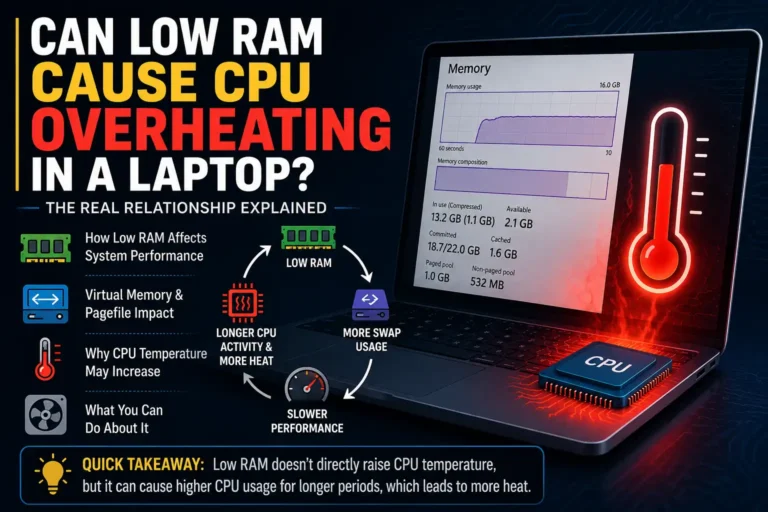
Your CPU heats up when downloading because your computer is doing more than simply receiving a file from the internet. During a download, the system has to process network data, check file packets, write data to your storage drive, and sometimes scan the file for security threats. These tasks can increase CPU usage, especially when you are downloading large files, game updates, software installers, or compressed files.
When CPU usage increases, the processor consumes more power and naturally produces more heat. A small rise in CPU temperature during downloads is usually normal, but if the temperature becomes very high, your fans run loudly, or your system starts lagging, the issue may be related to background apps, antivirus scanning, poor cooling, or heavy file processing.
Is It Normal for a CPU to Heat Up While Downloading?
Yes, it is normal for CPU temperature to rise while downloading, especially during large downloads, software updates, game installations, or compressed file downloads.
A normal increase is usually:
| Situation | Normal CPU Temperature Behavior |
| Small browser download | Little to no temperature change |
| Large file download | Mild temperature rise |
| Steam or game launcher download | Moderate CPU and temperature increase |
| Download + antivirus scan | Noticeable CPU usage and heat |
| Download + decompression/installing | Higher CPU usage and higher temperatures |
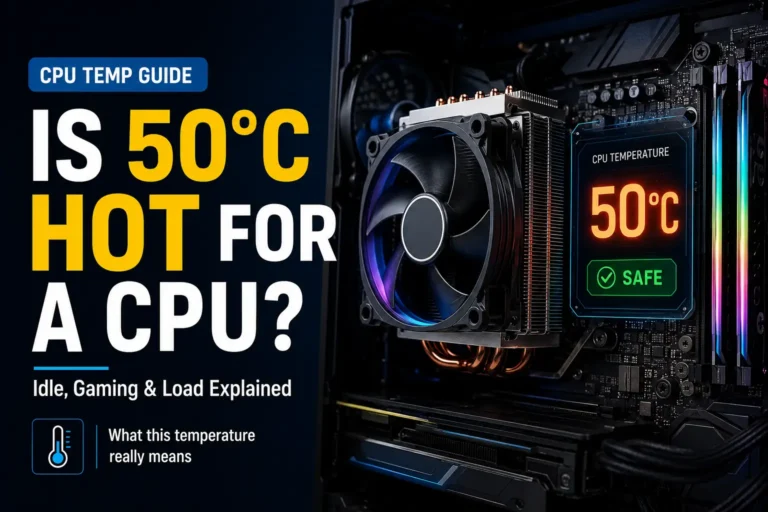
A 5–15°C increase above idle is usually nothing to worry about. For example, if your CPU idles around 40°C and rises to 55°C during a download, that is normal.
It becomes less normal if your CPU jumps from 40°C to 85–95°C during a simple download, especially if the download is not installing, extracting, or verifying anything. That usually means something else is involved: poor airflow, dust, bad thermal paste, a heavy background app, aggressive antivirus scanning, or malware.
What Happens Inside Your PC During Downloads?
When you download a file, your PC does not just receive it and save it directly. First, the data comes through your network connection in small packets. Your system processes these packets, checks that they are complete, and then puts them together to form the final file. This process uses the CPU, network adapter, memory, and storage drive at the same time.
After receiving the data, your computer writes it to the SSD or hard drive. If the file is large, compressed, or part of a game update, your system may also verify, scan, extract, or prepare the file for installation. These extra tasks can increase CPU usage and create more heat, especially if other apps are running in the background.
Common Causes of CPU Heating During Downloads
CPU heating during downloads usually happens because your system is doing more than just receiving a file. It may be processing network data, scanning files, writing data to storage, or running other apps in the background.
1: High CPU Usage
Large downloads, game updates, or software installers can increase CPU usage because the processor has to handle and organize downloaded data.
2: Antivirus Scanning
Antivirus software may scan files during or after downloading, which can temporarily increase CPU load and temperature.
3: Background Apps
Browsers, cloud storage apps, launchers, updates, and other background programs can use CPU resources while the download is running.
4: File Verification or Decompression
Game launchers and software installers often verify, unpack, or decompress files after downloading, which can make the CPU work harder.
5: Heavy Disk Activity
When files are being written to your SSD or hard drive, slow or busy storage can make the system work harder and increase overall heat.
6: Poor Cooling or Dust
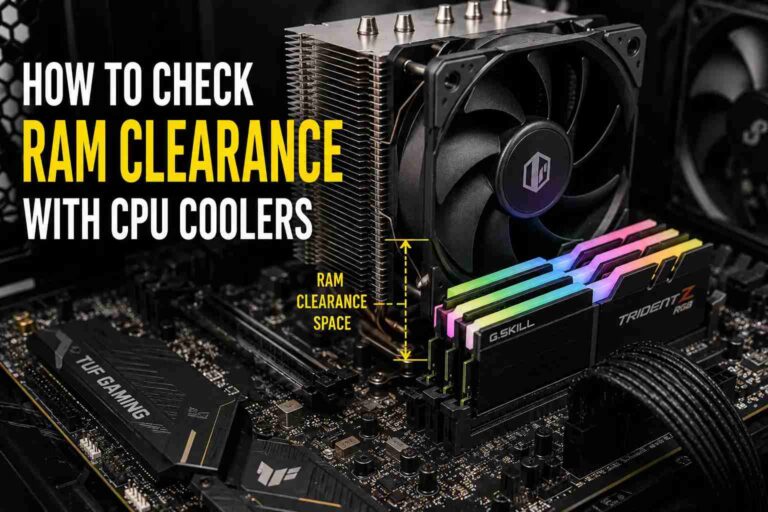
Blocked vents, dusty fans, or weak airflow can make CPU temperature rise faster, even during normal downloads.
Does Internet Speed Affect CPU Temperature?
Internet speed does not directly heat your CPU. A faster internet connection does not magically create heat by itself.
However, faster downloads can indirectly raise CPU temperature because your PC has to process more data in less time. If your system is also scanning, verifying, decompressing, or installing files, the CPU workload can increase.
For example:
| Internet Speed | Possible CPU Impact |
| Slow download speed | Less data processed per second |
| Fast download speed | More data processed per second |
| Gigabit download + decompression | Higher CPU load possible |
| Fast download + antivirus scan | Higher CPU usage possible |
| Fast download + old laptop cooling | Higher temperature risk |
Modern desktops with good cooling usually handle fast downloads without a problem. Older laptops, compact PCs, dusty systems, or devices with weak cooling may heat up more noticeably.
How to Check CPU Usage and Temperature While Downloading
You can check CPU usage and temperature while downloading to see whether the download itself is causing the heat or if another app is using your processor in the background. Start the download, then monitor CPU usage, disk usage, and temperature at the same time.
1: Check CPU Usage in Task Manager
On Windows, press Ctrl + Shift + Esc to open Task Manager. Go to the Processes tab and check which apps are using the most CPU. If your browser, game launcher, antivirus, or download manager is using high CPU during the download, it may be the reason your CPU temperature is rising.
2: Check CPU Temperature with Monitoring Software
Task Manager does not always show CPU temperature, so you may need a temperature monitoring tool. You can use software like HWMonitor, Core Temp, HWiNFO, or MSI Afterburner to check real-time CPU temperature while the download is running.
3: Compare Temperature Before and During Downloading
Check your CPU temperature when the system is idle, then check it again while downloading. If the temperature only rises slightly, it is usually normal. If it jumps very high or stays high even after the download ends, there may be a cooling, background process, or malware issue.
4: Watch Disk and Network Usage
Also check disk and network usage in Task Manager. Sometimes the CPU is not the only reason for heat or lag. Heavy disk writing, file verification, or network processing can make the whole system work harder during downloads.
Safe CPU Temperature While Downloading
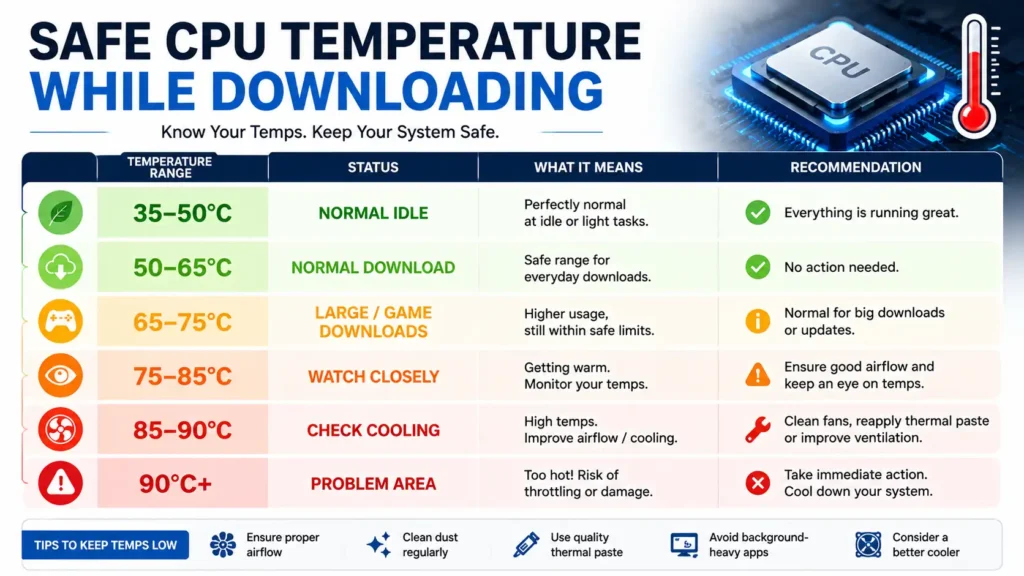
Safe CPU temperature depends on your exact processor, cooling system, laptop/desktop design, room temperature, and workload. Do not treat one number as a universal rule for every CPU.
Still, these practical ranges are useful for downloads and light-to-moderate workloads:
| CPU Temperature | Meaning During Downloads |
| 35–50°C | Normal idle or very light activity |
| 50–65°C | Normal during browser downloads or small updates |
| 65–75°C | Normal for game launchers, laptops, or large downloads |
| 75–80°C | Usually acceptable, but watch background processes and airflow |
| 80–85°C | Higher than expected for simple downloads; investigate if frequent |
| 85–90°C | Not ideal for downloads; check cooling, dust, fan curve, and CPU usage |
| 90°C+ sustained | Problem area; fix cooling or background load |
| Sudden shutdowns | Serious overheating or power/cooling issue |
1: Intel CPUs
Intel CPU temperature limits vary by model. Many Intel processors have maximum junction temperature limits around 100–110°C, but that does not mean you should casually run near that range during downloads.
For downloading and light-to-moderate workloads, a practical target is to stay under 80°C, with lower being better.
2: AMD Ryzen CPUs
AMD Ryzen CPUs also vary by model. Many modern Ryzen desktop CPUs list a maximum operating temperature around 90–95°C, depending on the exact processor.
For ordinary downloads, a good practical range is usually below 75–80°C. If a Ryzen CPU hits 90°C+ while only downloading a file, check whether the launcher is decompressing files or whether cooling is weak.
3: Important Point
The CPU’s maximum temperature is not the same as the ideal operating temperature. A CPU may technically protect itself near its limit by throttling, but you still do not want sustained high temperatures during basic tasks.
When Should You Be Concerned About CPU Heat?
You should be concerned about CPU heat if the temperature stays high for a long time, even after the download is finished. A short temperature rise during downloading is normal, but constant overheating is not.
You should also check the problem if your fans run loudly all the time, your PC starts lagging, the system shuts down or restarts, or downloads make the CPU temperature rise very quickly. These signs may point to poor cooling, background apps, malware, or a hardware issue.
How to Reduce CPU Heat While Downloading:
To reduce CPU heat while downloading, close unnecessary background apps, browsers, game launchers, and update services. This lowers CPU usage and helps the processor stay cooler during the download.
You can also limit download speed, pause heavy tasks like gaming or video editing, and schedule antivirus scans for later. Make sure your laptop or PC has proper airflow, clean the fans and vents, and keep your drivers and system software updated. If the CPU still gets hot during small downloads, run a malware scan to check for unwanted background programs.
Common Mistakes That Make CPU Heating Worse:
Avoid these common mistakes because they can make your CPU heat up more while downloading:
- Placing a laptop on a soft surface: Beds, sofas, and blankets can block the air vents and trap heat inside the laptop.
- Running heavy apps during downloads: Gaming, video editing, streaming, or opening too many browser tabs can increase CPU usage while the download is running.
- Ignoring background processes: Update services, cloud sync apps, launchers, and other background programs can keep using CPU power during downloads.
- Downloading during antivirus scans: Antivirus scans are useful, but running them during large downloads can make the CPU work harder.
- Not cleaning dust from fans and vents: Dust blocks airflow and makes it harder for the cooling system to remove heat.
- Ignoring outdated drivers or system software: Old drivers can cause poor performance, high CPU usage, or inefficient hardware management.
- Ignoring warning signs: Loud fan noise, lag, sudden shutdowns, or very high temperatures should not be ignored.
Tips to Keep Your CPU Cool During Large Downloads:
Follow these tips to keep your CPU cool when downloading large files, games, or software updates:
- Close unnecessary apps: Shut down extra browser tabs, game launchers, and background programs before starting a large download.
- Keep the device on a hard surface: If you use a laptop, place it on a desk or flat surface so the vents stay open.
- Improve airflow: Make sure fans and vents are not blocked, and keep enough space around your PC or laptop.
- Avoid heavy multitasking: Do not run games, video editors, or other CPU-heavy apps during large downloads.
- Use a cooling pad: A cooling pad can help laptops stay cooler during long downloads.
- Limit download speed if needed: If fast downloads make your CPU temperature rise quickly, reducing the download speed can lower the load.
- Keep drivers and system software updated: Updated drivers can improve performance and reduce unnecessary CPU usage.
- Monitor CPU temperature: Check the temperature during large downloads so you can notice overheating before it becomes a serious problem.
FAQS:
1: Why does my CPU heat up when downloading?
Your CPU heats up when downloading because your computer is not only receiving data from the internet. It also processes network packets, writes files to storage, scans downloads, verifies file parts, and sometimes decompresses or prepares files for installation. These tasks can increase CPU usage and create more heat.
2: Is it normal for CPU temperature to rise during downloads?
Yes, a small rise in CPU temperature during downloads is normal, especially when downloading large files, games, software updates, or compressed folders. However, if the CPU gets extremely hot, the fans run loudly, or the system starts lagging, there may be a cooling or background process issue.
3: Can fast internet speed make my CPU hotter?
Fast internet speed does not directly heat the CPU, but it can make the system process more data in less time. If your PC is also scanning, verifying, decompressing, or writing large files, CPU usage may increase and raise the temperature.
4: Why does my laptop get hotter than a desktop while downloading?
Laptops usually have smaller cooling systems and limited airflow compared to desktops. If the laptop is placed on a bed, sofa, or soft surface, the vents can become blocked, which makes the CPU heat up faster during downloads.
5: Can antivirus software increase CPU temperature during downloads?
Yes, antivirus software can increase CPU temperature because it may scan files during or after downloading. This scan can temporarily increase CPU usage, especially when downloading large files or software installers.
6: Do game downloads or updates use more CPU?
Yes, game downloads and updates can use more CPU than normal file downloads. Game launchers often verify files, unpack compressed data, install patches, and prepare files after downloading, which can make the CPU work harder.
7: How can I check if downloading is causing CPU heat?
You can open Task Manager on Windows by pressing Ctrl + Shift + Esc and check CPU, disk, and network usage while downloading. For temperature, use tools like HWMonitor, Core Temp, HWiNFO, or MSI Afterburner to monitor real-time CPU temperature.
8: What CPU temperature is too high while downloading?
The exact safe temperature depends on your CPU model and cooling system. A slight rise is normal, but if the CPU stays very hot for a long time, reaches high temperatures quickly, or causes lag, loud fan noise, shutdowns, or restarts, you should check cooling, dust, background apps, or malware.
9: How do I stop my CPU from overheating while downloading?
Close unnecessary apps, avoid gaming or video editing during large downloads, keep your device on a hard surface, clean dust from fans and vents, improve airflow, update drivers, and limit download speed if needed. You should also run a malware scan if CPU usage stays high without a clear reason.
10: Should I stop the download if my CPU gets too hot?
If your CPU temperature becomes very high, the fans run at full speed, or your system starts lagging or shutting down, it is better to pause the download and let the system cool down. After that, check background apps, cooling, antivirus scans, and airflow before continuing.
Conclusion:
A CPU heating up while downloading is usually normal because your computer has to process data, write files to storage, scan downloads, and sometimes verify or decompress files. A small temperature increase is not a problem, especially during large downloads, game updates, or software installations.
However, your CPU should not stay extremely hot for a long time during normal downloads. If you notice loud fan noise, lag, sudden shutdowns, or high temperatures even after the download ends, the problem may be related to background apps, antivirus activity, poor airflow, dust, malware, or weak cooling.
To keep your CPU cool, monitor CPU usage and temperature, close unnecessary apps, keep vents clean, improve airflow, and avoid heavy multitasking during large downloads. If overheating continues even during small downloads, it is a sign that your system needs a deeper check.